
With the release of iOS 4.2 came many new features including AirPrint – the ability to print from your iOS device. AirPrint is available for iPad, iPhone 4, iPhone 3GS, and iPod Touch (3rd Generation and later). AirPrint was a feature that I was really looking forward to – especially for the iPad. The feature was originally planned to work directly with printers that implemented AirPrint as well as through shared printers from your Mac or PC. However the current release removed the shared printers option prior to the final release. So what are your options?
The Official Solution
Apple’s official solution includes the ability to print to a printer that supports AirPrint. The official Apple list has grown to include 18 printers from Hewlett-Packard. Expect the list to continue to grow and to add printers from other manufacturers. HP added support to some printers that were sold prior to the iOS release so it is possible you have one of them. If you have one of these printers there is an advantage because you can print to them without any computer being powered on.
Printopia to the Rescue
So what if you don’t want to buy a new printer? Ecamm has come to the rescue if you have a Mac. For $9.95, Printopia for Mac is a great way to print from your iOS device through your Mac. Even better, they offer a demo version so you can try it out for 7 days to make sure it works with your printers. For me every printer I have tried has worked including a Brother HL-1440 laser printer and a HP Photosmart C5140 printer.
Setup
After you download and install the software it will show up in System Preferences under the Other section at the bottom. A nice added touch is the ability to turn off printers that you don’t want shared. In my case that included a Brother label printer. After the install on your Mac you are ready to go. Your iPad, iPhone, or iPod Touch are ready if they have iOS 4.2 installed.
Added features
Printopia includes two additional options for printing that are really useful. You can send to your Mac and you can send to your Dropbox. When you send to Mac, the document will be saved as a PDF file in a Printopia folder in your Documents folder. It will then automatically open in Preview. When you send to Dropbox, a PDF file will be put in a Printopia folder within your Dropbox folder. If you don’t know about Dropbox you need to check it out. It is a great service for sharing and syncing files which is supported by many iOS apps. Dropbox is fast becoming the way to move files around without having to make duplicates. Both of these features can be quick methods to move information.
Printing from iOS
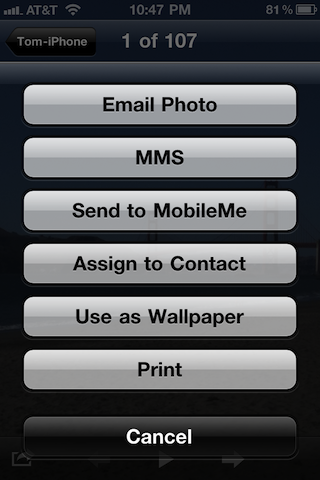
A number of apps support printing including Safari, Mail, Camera and Photos. In these apps, press the forward icon and you should see Print as a choice. The Apple iWork apps Pages, Numbers and Keynote also support printing. For these apps it is not real obvious at first but if you tap on the gear icon you will see the option to print. Many apps already support printing but expect many more to get updates to take advantage of this new feature.
Check out the print dialog from the Camera app.
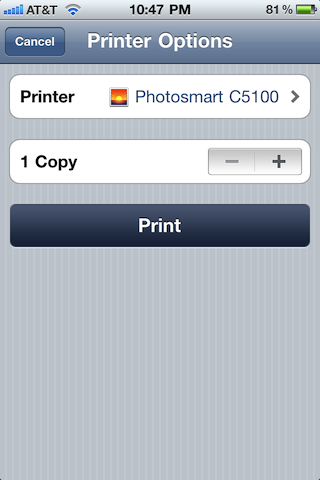
And here is the dialog where you can choose your printer and the number of copies.
Other solutions
Since Apple had provided code in iOS 4.2 during the beta process, there are some solutions which allow you to install and turn it on for both Mac and Windows. If you search for them you should be able to locate them as well. I really liked the additional features of Printopia along with the quick installation and well designed system preference panel so I did not test these other solutions.
Get to Printing!
So now you can get the full value of the AirPrint feature from your iPad, iPhone, and iPod Touch. I think the $9.95 was well worth the investment to use all of my existing printers along with the additional send to Mac and Dropbox features. It certainly was cheaper than buying a new printer.
 Tom's Tech Tips