First in a series

Finding a way to keep yourself organized by using your Mac is a goal many of us are looking for. Your needs and style will determine the level of detail and the type of program that will work best. This first post in a series on organization with your Mac takes a look at iCal. Further posts will take a look at alternatives that provide many more features. Don’t let extra features pull you to another program unless you can see the benefit they will offer you. In many cases the benefits are worth it but that is where you will need to decide. I also expect you will continue to use iCal with other programs.
Apple provides a number of great applications when you pull your Mac out of the box. Address Book, Mail and iCal provide the basis for everyday communication and organization. I prefer the three application approach because it allows each application to be simpler since it focuses on the specific area it was designed for. This is very much unlike Microsoft Outlook which combines everything into one program. The programs still interact with each other nicely when you need it. If you write an email in Mail it can pull the email address from Address Book. If you get an email with a meeting date you can quickly add it to iCal.
For organization, iCal is the place to start. It provides calendars, subscriptions and to do lists.
Calendars
To get the most out of the way iCal works you can set up a calendar for each area that might make sense to see by itself. If you are a student or teacher, set up a calendar for each class and assign a different color to each of them. Set up calendar groups for school, home and work. The advantage of individual calendars and calendar groups comes when you only want to check certain calendars or certain groups. Just want to see events for school? Select your school calendar group and uncheck the rest. Here is a sample of calendar groups and calendars.
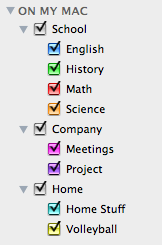
You can hide all of the individual calendars in a group by clicking on the triangle in front. You can select any combination of individual calendars. This will allow you to focus on what you need to know now. All of your events from the selected calendars get displayed on a single calendar which is nicer than the Outlook way of showing calendars next to each other.
If you are using MobileMe to sync with your iPhone you cannot use calendar groups at this time. The latest update to MobileMe brought a more robust web version but it doesn’t handle calendar groups. If you need this feature you will want to stay on the older version or downgrade if you have already upgraded. I find I like the new features so I removed my calendar groups.
Subscriptions
iCal is built on an internet standard called CalDAV. So why is this important? Both Google Calendars and Yahoo Calendars also support the CalDAV standard. One advantage is the benefit of subscriptions.
If someone you know has a Google calendar with information you could use, they can share it to you. You can subscribe to the calendar and have it show in iCal. When they share the calendar, they will likely send you an email with the link to the calendar. Copy this link from your email and go to the Calendar menu in iCal and choose Subscribe… Paste the link into the Calendar URL field and your set.
There are many calendars out there that you can subscribe to but how do you find them? Apple provides a great resource for calendar subscriptions on their web site in the downloads section. Another good source for subscriptions is at iCalShare. Subscribe to a calendar of US Holidays or your favorite sports team. Below are links for US Holidays and Penn State Football. Copy these links and add them to your iCal if you wish.
-
(webcal://ical.mac.com/ical/US32Holidays.ics)
Many high schools use the site HighSchoolSports.net for posting practice schedules and games. Once you find your school, click on Sync and choose the sport and detail that you want. Copy the calendar link field and subscribe to it.
If you have put Birthdays into your Address Book contacts, you can show them in iCal. Open Preferences… from the iCal menu and check Show Birthdays Calendar in the General tab. You now have a nice integration between iCal and Address Book.
Keep your eyes open whenever you are on a calendar site. There just might be a link you can get for iCal.
To Do Lists
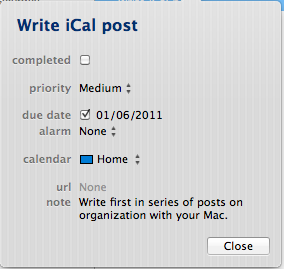
To Do lists are another feature of iCal. If you don’t see them, click on the push pin in the lower right corner or go to the View menu and choose Show To Do List. To Do’s in iCal are attached to an individual calendar. You can then turn them on or off with the calendar check boxes. You can also set priorities, due dates and alarms. Add a link to a web page or a note to describe the task. Check it off when you have it completed.
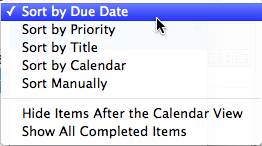
Set your sort order by clicking on the title at the top of the list. Here are your choices for sorting.
If you have an iPhone, iPod Touch or iPad, you will notice that Apple has not provided a To Do app that takes advantage of your hard work in iCal. It’s been a complaint since the very first iPhone and is still missing today. I expect that is why you see so many third party apps that try to fill the void.
Summary
iCal is an application that many will find fully meets their needs for calendars and to do lists. If that’s you then your quest might be over. If you find iCal to be a good start but doesn’t totally meet your needs then continue on to the second post in my series on Organization with GTD.
 Tom's Tech Tips
This is my first time pay a quick visit at here and i am genuinely
happy to read all at one place.
Glad you found it helpful.