
Anybody who watches me use computers will notice that I use a lot of keyboard shortcuts rather than reaching for a mouse. Whether I am on Mac or Windows, it doesn’t matter. In this post I bring you some of my favorite Mac keyboard shortcuts. Hopefully you will find them as useful as I do.
Coming from Windows?
If you came to the Mac from Windows, you will find many things are similar. How you work with applications and their windows is slightly different and I recommend that you don’t do the exact same thing.
For example, in Windows my tendency is to minimize and maximize windows. In Windows, I tend to fill the screen with the window of the application I am currently using. On the Mac, I tend to have more overlapping windows. The three buttons in the upper left corner of a Mac window are very similar to the three buttons in the upper right corner on a Windows window but they are not the same.
- The green maximize button only maximizes the window to the content of the application rather than the screen.
- The yellow minimize button minimizes the window to the right side of the dock or into the application icon on the dock. (This alternate setting can be turned on in Snow Leopard under System Preferences and then Dock and checking Minimize windows into application icon.)
- The red close button closes the window but doesn’t close the application.
The most common thing I see someone coming from Windows do is to click on the red close button and think that the program has also quit. That’s what it does in Windows. The Mac interface was designed with the idea that a program can be running without any windows being open. For an application on Windows there will be a window open along with the program. When the last window closes, so does the application. To close a Mac application, you must specifically quit the application. Closing the last window will not do it.
So what do I recommend?
- Maximize – Click on the green maximize button. Maximizing a window may require you to stretch the size of the window with your mouse to get the size you want. On the Mac, you can currently only do that from the lower right corner.
- Minimize – I don’t minimize. If I want to get an application out of the way, I hide it instead.
- Hide (Cmd-H) – Hide an application instead of minimizing. All of the windows for the application will disappear immediately. No space taken up on the dock or cool animations to wait for.
- Close (Cmd-W) – Close the active window and stay in the application. Take note of the black dot in the red button. If there is a black dot, there are changes that need to be saved. The program will alert you to save when you close the window if there are changes. Knowing to look for the black dot is great if you want to save periodically without closing the window.
- Quit (Cmd-Q) – Quit the application and close all of the windows. If there are documents that need to be saved, you will get a chance to save them.
- Switch Window in Application (Cmd-`) – This is a nice shortcut to know for cycling through the windows within a specific application.
Application Switching (Cmd-Tab)
Switching applications is handled similar to Windows by using the Cmd-Tab keys. A nice feature is the additional things you can do within the application switcher. By continuing to hold down the Cmd key after the Cmd-Tab, you can also do the following.
- Tab or Shift-Tab – Select next or previous application
- Arrow Left or Right – Select next or previous application
- Mouse Wheel – Select next or previous application
- Two Finger Trackpad Gesture – Select next or previous application
- Mouse Pointer – Using either your mouse or trackpad you can select any application
- Q – Quit the application
- H – Hide the Application
- Arrow Up or Down – Expose for just that application. If you click on other open applications in the Dock they will be added to Expose.
I quite often use the Q and H keys to quit applications I no longer need or hide applications to clear the screen. If an application is hidden, choose it in the switcher. This is a quick way to bring hidden applications back on your screen. You will notice your hidden applications will move to the right side of the switcher and the rest of the order is based upon the applications you used most recently. Therefore, it becomes quite easy to switch back and forth between two applications by just hitting Cmd-Tab and letting go. This is something I do all of the time.
Applications
When I am in a specific application, here are the shortcuts that I use.
- Hide (Cmd-H) – Hide the application
- Close Window (Cmd-W) – Close window
- Quit (Cmd-Q) – Quit the application
- Open (Cmd-O) – Open a document
- New (Cmd-N) – Start a new document
- Save (Cmd-S) – Save the current window
- Save As… (Cmd-Shift-S) – Save the current window to a new file name
- Print (Cmd-P) – Print the current window
- Undo (Cmd-Z) – Undo the last thing you did. You can undo multiple times.
- Redo (Cmd-Shift-Z) – Redo if you used the undo. Could be multiple times if you did multiple undos.
- Cut (Cmd-X) – Cut the highlighted selection from the document and place on the clipboard. To help you remember, note how an X looks like scissors.
- Copy (Cmd-C) – Copy the highlighted selection from the document and place on the clipboard.
- Paste (Cmd-V) – Paste the clipboard contents into the document where the cursor is located. To help you remember, note how a V looks like the point of a pen that would be writing on the paper.
- Select All (Cmd A) – Select everything in the window. This also works in fields within dialog boxes.
- Switch to next window (Cmd-`) – This switches between windows within the application.
Notice how Undo, Cut, Copy and Paste are all in the lower left hand corner of your keyboard where they are all easy to get to.
Text Editing
Here are some keyboard shortcuts when you are editing text in a document. These shortcuts also work in dialog boxes.
- Move to beginning of line (Cmd-Left Arrow)
- Move to end of line (Cmd-Right Arrow)
- Move to beginning of document (Cmd-Up Arrow)
- Move to end of document (Cmd-Down Arrow)
- Move to beginning of previous word (Option-Left Arrow)
- Move to end of next word (Option-Right Arrow)
- Move to beginning of previous line (Option-Up Arrow)
- Move to end of next line (Option-Down Arrow)
If you use the Shift key with any of the above key combinations, you will select everything in between. This can make it really fast to select text. Microsoft has not implemented all of these shortcuts in Office. The shortcuts with left and right arrows do work in Office but the others work differently. You will however find they work across almost every other application.
Dialog Boxes
To make dialog boxes more friendly to the keyboard you will first want to make a change in System Preferences. Open System Preferences and then Keyboard followed by choosing the Keyboard Shortcuts tab. At the bottom of this pane, change the setting for Full Keyboard Access to All Controls.
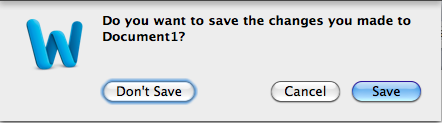
With the setting changed you will notice that there is a solid blue button and a button or area with a blue outline. If you hit your Return key, you will do whatever the solid blue button says. This would be true without changing the setting above. The button with the blue outline can be done if you hit the Space Bar. To change the button with the blue outline, use your Tab key. Use your escape (esc) key to cancel.
Safari / Firefox / Chrome
Here are keyboard shortcuts I use that are unique to web browsing on Safari, Firefox or Chrome.
- URL Entry (Cmd-L) – enter the location you want to go to on the internet
- Search (Cmd-L then Tab) – I know this isn’t the official shortcut. That would be Cmd-Option-F. For some reason I find it much easier to remember Cmd-L and then Tab since I already know Cmd-L by itself takes me to the URL Entry. The Tab just moves you to the next field which is Search.By the way, you can change your default search engine in Safari’s preferences. Go to the Safari menu and then Preferences…. From the General tab make your selection for Default search engine. To make the change in Firefox, click left of the search field and make your selection. This doesn’t apply to Chrome since Google combines the URL Entry and search into the same field. Oh and surprise, in Chrome you can change the search engine to something other than Google under Preferences.
- Find on Page (Cmd-F) – this will search the page for your words. The words will be highlighted and you will be able to step through all the results.
- New Tab (Cmd-T)
- Close Tab (Cmd-W)
- Switch to Next Tab (Control-Tab)
- Forward (Cmd-])
- Back (Cmd-[)
Google Mail
Lastly, here are some keyboard shortcuts I use that are unique to Gmail.
When you are viewing email as a list of messages.
- Move to Older Message (j)
- Move to Newer Message (k)
- Open Message (Return)
When you are viewing a single email message.
- Star (s)
- Delete Message (#)
- Archive Message (y)
There are plenty of other Gmail keyboard shortcuts. These are however the ones I use all of the time. If you use them, you can go through a lot of email quickly. I like to clear my inbox when I process email.
Here is my process. I use j or k to position where I want to start if necessary and then press Return. This allows me to review the message. If it is something I don’t need to keep I use # to delete. If it is something I need to do something with but not at the moment, I star it with s. If I starred the message or just want to keep it for reference then I archive it with y. The delete (#) and archive (y) keystrokes will take you back to the list view so from there you just repeat the process. I review the starred items regularly until they are complete. Once they are complete I remove the star by typing an s again. The s just toggles the star on or off.
Conclusion
This may seem like an overwhelming list of shortcuts. The beauty is that many of them work across all of your applications. I remember when Mac applications would be ridiculed by the community if certain keyboard shortcuts were note adhered to in an application. This has caused consistency across many applications which in turn makes it easier to put these shortcuts to use everywhere. You may already know a lot of these shortcuts already. For the ones you don’t know, I suggest you pick and choose the ones that catch your eye and start working them into your daily routine. I expect you will find improvements in your daily productivity.
 Tom's Tech Tips
Wonderful! Thank you much!!
Mike,
Glad you liked the post.
Tom
I know this is a rather old post, but I only just discovered it. Great post, bookmarked this page as a reference. There’s a great little app in the App Store called ‘Cheatsheet’ which shows you application shortcuts after you hold down command for a designated period of time. Can only but complement this post 🙂
Thanks for the comment. Glad you liked it. CheatSheet is a great app for seeing all of the keyboard shortcuts. I use that one myself as well. For some similar apps also check out dashkards at: http://dashkards.com. They work in the dashboard. One more to look at is Brett Terpstra’s Cheaters at http://brettterpstra.com/projects/cheaters/