 Backing up your computer is one of those things that everyone knows they should do but far too often do not do very well. Don’t let your backup strategy improve only when you lose data or come oh so close to losing those memories. In this post, I provide you with my backup recommendations so you can get your data back when disaster strikes. Don’t think it won’t strike because the odds will likely prove you wrong.
Get an External Hard Drive
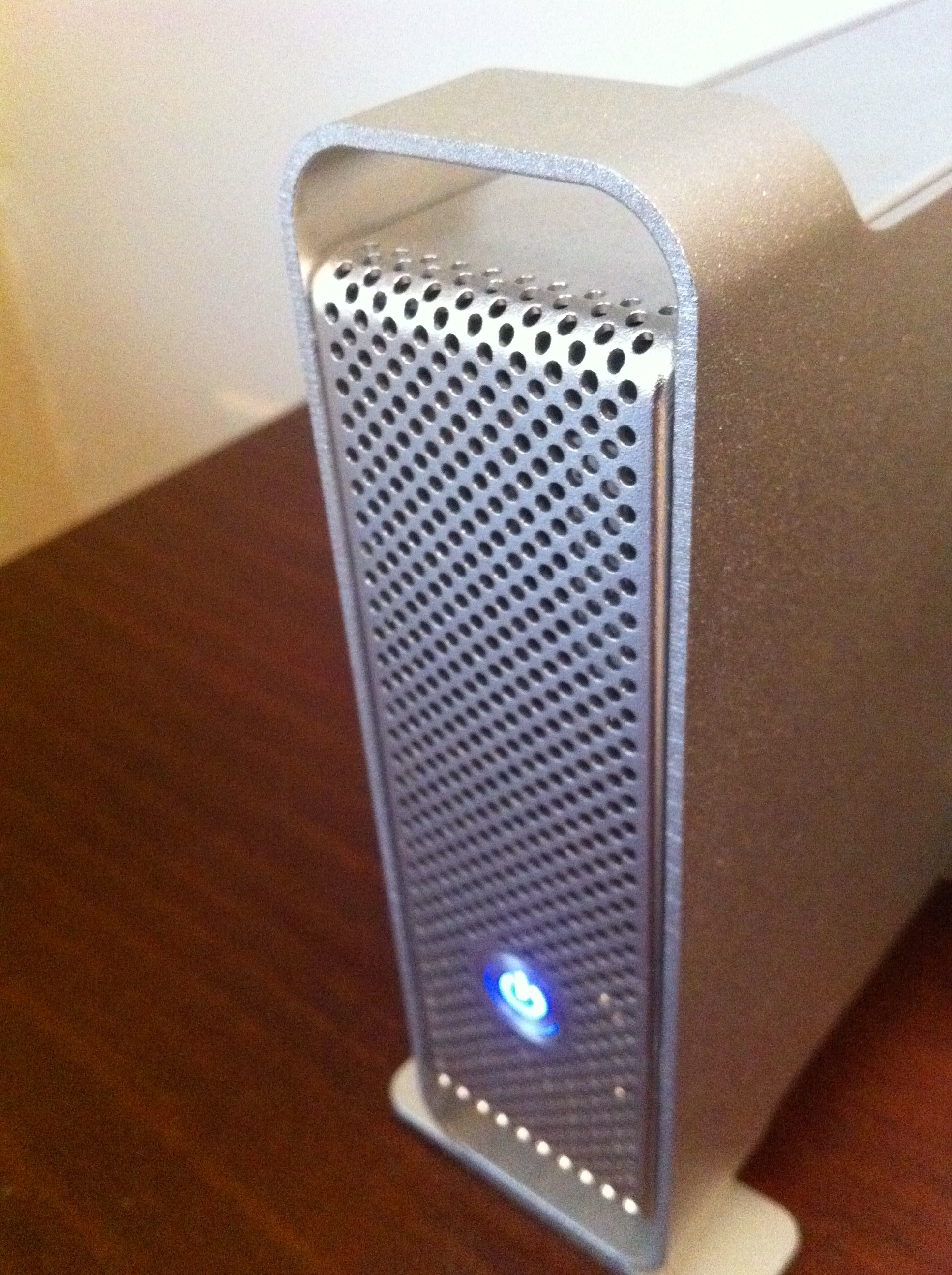
My first two backup steps use an external hard drive. My recommendation is to get an external drive that is twice the size of your Mac’s internal drive. This will allow you to do both of these backups on the same drive. Today’s standard Mac configurations come with up to 1 TB drives. 2 TB external drives are easy to come by for this recommendation. If you custom order a larger capacity drive with your Mac then you may need two external drives.
You will find two main types of external drives when you start looking. The difference is in the physical size of the drive. The larger drives are based on 3.5” desktop drives. These drives will typically be cheaper but will be larger and require separate power. The smaller drives are based on 2.5” portable notebook drives. Expect these drives to cost more but they are smaller and often can pull power from the connection. Desktop drives come in larger capacities than portable drives. Currently the largest portable is 1.5 TB whereas desktop drives can be found up to 3 TB and 4TB drives are right around the corner. I have used Western Digital, Seagate and LaCie external drives and have been happy with all of them.
A couple of other specifications that you could consider are drive speed and mean time between failure (MTBF). Drive speed is how fast the physical drive spins in revolutions per minute (RPM). Speeds will vary from 5,400 rpm on portable drives up to 15,000 rpm for enterprise class drives. For your individual Mac backup, drive speed will not be a big issue. If you are concerned with shortening backup time then choose a faster drive. MTBF is a specification which helps you determine which drive should be more reliable. This does not mean that your drive will last as long as the specification. I have seen drives fail within months and I have seen drives go for many years. The MTBF will at least help you pick a more reliable drive. The manufacturer’s warranty will usually increase with a higher MTBF rating.
Interfaces for external drives can also be a choice. The cheapest external drives will only have USB available. For our purposes that is fine. If you want faster backups consider Firewire 400 or Firewire 800. Check to see what is available on your Mac. Apple has dropped Firewire 400 support from there current lineup but adapters are available for Firewire 400 to Firewire 800. MacBook and MacBook Air notebooks only have USB ports. Apple’s newest MacBook Air and Mac Mini now include Thunderbolt as well. Drives are arriving for Thunderbolt but are for fairly high end uses for now.
External hard drives continue to get cheaper all the time. 1 TB drives can be found in both external desktop and portable sizes for under $100 on Amazon. 2 TB external desktop drives can also be found for around $100. Don’t be concerned about picking up a drive that is Mac compatible. All of the drives with USB will work with a Mac with the difference being the file format they were prepared with. If you want to use a drive right out of the box then this could be convenient. In the next section I recommend you reformat and create two partitions on the drive. At that point you will be Mac compatible.
Apple offers another solution with their Time Capsule. The Time Capsule integrates an Airport Extreme wireless router with a hard drive to do the same thing. The advantage is wireless backup which means you don’t need to plug in the drive to get your backup. I think the solution provides an easy to setup wireless solution but it is certainly not the cheapest way to go. I also prefer keeping my drive separate from the router since drives are known to fail and routers are pretty reliable. I don’t want to have to take apart the router to replace the drive.
Apple also allows you to add a drive to an Airport Extreme to do the same thing as a Time Capsule. The setup is a little more involved but I have done it successfully. It accomplishes the same goal of wireless backup with some extra effort. Apple does not support this option and not everyone has had good luck with this method.
Keep in mind how much data might flow over your wireless network for your backups and what else you might want to have flowing over the network. If you push a lot of video at the same time as your backup you will likely prefer the direct connect drive solution to the wireless one.
Prepare Your Hard Drive
Now that you have an external drive, I recommend that you create two partitions on it. Think of a partition on a hard drive the way you would think of a wall in your home. Walls in your home create separate rooms where you can create living spaces for the way you want to use them. Partitions on a hard drive create similar rooms on the hard drive which we can use for different purposes.
Disk Utility comes with your Mac and can create the partitions we want to use for our backups. I’ll talk about how to use the software for the two partitions but for now know that we are creating a partition for SuperDuper and one for Time Machine. The first partition will be for SuperDuper. SuperDuper makes an exact copy of your drive so you want to make this partition the same size as your internal hard drive. The second partition will be the remainder of your drive and will be set aside for Time Machine.
You may have seen that SuperDuper can do it’s backups on the same partition as Time Machine. I don’t recommend it. While there is plenty of space on the drive it works great. When Time Machine finally fills up the drive, things get a little difficult and I found it wasn’t worth the hassle.
When setting up your partitions in Disk Utility, you select your drive and select the Partition tab. From here you can choose a different volume scheme. Choose 2 Partitions.

Click on each partition and click on the Options… button. Make sure you choose GUID Partition Table. This will allow your drive to be bootable.
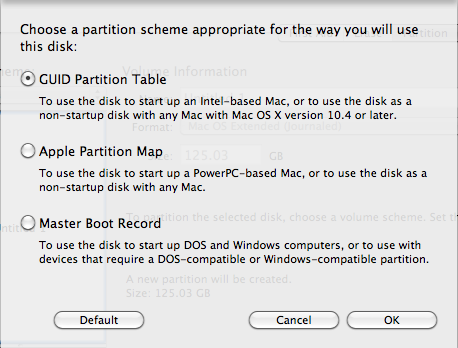
Name your partitions. Check to make sure the format is Mac OS Extended (journaled) and choose the size of each partition as I noted above. Click on the Apply button and Disk Utility will do the rest.
Time Machine
Setup
Apple introduced Time Machine with Mac OS X 10.5 Leopard. This is the easiest place to start. By adding an external hard drive you can setup an effective backup system that requires minimal effort on your part. You will notice that Time Machine will recognize your external hard drive and ask if you want to use it. If you have set up your partitions from the previous section then you can point it to your Time Machine partition. If you skipped over the message or didn’t get the message it is easy to turn it on. To do so, go to the Apple menu and choose System Preferences… In the System section you will find Time Machine preferences. Click on Select Disk… and choose the Time Machine partition we created above on your external hard drive. That’s all there is to it.
Take a look at the Options… settings if you have files you don’t want included in Time Machine. One likely item to exclude would be a virtual machine created with either Parallels Desktop or VMWare Fusion. These files are very large and will change constantly when in use. This will cause your Time Machine partition to fill up quickly. Parallels and VMWare have settings to not back up with Time Machine which helps prevent this problem. Other examples could include temporary files used for video editing or other programs. Click on the + button and add any of these folders or files to be skipped over.
You can show Time Machine in the menu bar if you click the check box. I would recommend this since you will get visual cues when backups are occurring as well as cues when something isn’t working properly. Having these cues are helpful since Time Machince works so seamlessly in the background.
Time Machine keeps hourly backups for the last 24 hours as well as daily backups for the last month and then monthly backups until the drive is full. Backups will eventually start to get erased once the drive is full.
Restore Files
The real value of a backup is when you need something back. Open Time Machine from the Dock or choose Enter Time Machine from the menu bar icon. If you have neither on, go to the Applications folder and you can open Time Machine from there. I prefer the menu bar since I get the visual cues and then don’t need it in the Dock. Once Time Machine is open you can search or navigate for the file or folder. If you had multiple versions you can check them out. The Finder’s Quick Preview can be used in Time Machine before restoring allowing you to view many types of files prior to clicking on the Restore button. This type of restore is ideal when you do as I occasionally do. I will open a file that is similar to what I want to do. When I do that I should immediately save the file with a new name. Unfortunately there are times when I didn’t do that and saved the file over the original. Time Machine can help bring back the original version. Just remember Time Machine only does hourly backups and only when the drive is available. Make this type of error in the first hour or don’t keep your drive available then you might be out of luck.
Time Machine can also be helpful if your hard drive fails. When you reinstall OS X, you will be able to restore from your Time Machine backup. When all of your files and settings come back you will be glad that you did your backup. Once again the restore will only be as good as the last backup Time Machine got. Keep your drive plugged in or available over the network and you should have minimal loss of data.
For more detailed information on setup and restore, check out Apple’s knowledge base support article.
SuperDuper
Time Machine sounds great. Why do I need this thing called SuperDuper?
Well you don’t need it but I think you will want it for the times your hard drive fails or you are switching to a new computer. SuperDuper is ideal when you need a complete copy of your drive. In addition to making a complete copy of your drive it can make this backup bootable.
Take the scenario where your hard drive fails. With a SuperDuper backup you can start up or “boot” your computer from the SuperDuper backup. This means with a simple restart, you can continue working on your computer and order a new drive. Once the new drive is in, format it and rebuild it from the SuperDuper backup. You are ready to go and didn’t lose a beat in the process.
SuperDuper can also be a great way to put in a larger drive in your current system. After you install the drive, you can copy your SuperDuper backup to the drive. I have done this with my current notebook and it was an easy way to stretch the life of the computer.
Are you moving to the just released OS X Lion? A SuperDuper backup right before your upgrade should be a must. If anything goes wrong you will have a fully bootable version of your system with Snow Leopard. If you find a program which doesn’t work well under Lion you aren’t down for the count.
SuperDuper is available for free if you are looking to do unscheduled backups as you need them. I recommend using the scheduled backup feature. I use this to backup once a day during the work week at lunch time. You could do yours at night or any time that makes sense with your schedule. Just make sure it happens consistently to get the most benefit when a failure occurs. The paid version costs $27.95 and vastly shortens scheduled backup times. It does this by looking at the files and only backing up those that have changed. This typically cuts my daily backup time to about 20-25 minutes.
Offsite
While Time Machine and SuperDuper do a great job of backing up your system there is still one problem you need to consider. In the case of fire or theft both of those options will fail you. There are a number of ways to fix this but I urge you to not ignore this possibility. Lets take a look at some of the available options.
External Drive
One way to get data offsite is to use another external drive. Do a backup with SuperDuper and then take the drive to another location. At work, we use a bank safe deposit box. You could take the drive to a trusted family member or friend for storage. The main drawback here is that the backup is only as current as the last copies on the drive. It is however better to only lose some data than all of it.
An alternative to drives are tape. This is a popular option for businesses that have much greater backup requirements. It is likely not the best option for most home users. For this scenario at work, I use Retrospect for my server, workstation and notebook backups. If you have need to backup multiple systems, you will find it will make your life easier to create a complete backup strategy to tape and drives. Symantec Backup Exec is also highly regarded in the business space.
Dropbox
I don’t really consider Dropbox a complete backup solution. It does however keep all files in your Dropbox folder saved on their servers and any other computers you have synced to your account. If you were to keep your most critical documents in Dropbox, you would be able to work with them on any computer very quickly. Consider at least setting up a free account and using the Dropbox folder for your current work files. This way even if you are using external drives for the bulk of your backup, Dropbox would have current copies of files since the last drive backup.
Dropbox provides a free account up to 2 GB of storage. You can increase this storage by viewing their tutorials and getting friends to join. After that they offer plans to purchase additional storage. They currently offer a Pro 50 plan which is 50 GB of storage for $9.99 per month or $99.00 per year. In addition, they offer a Pro 100 and Teams plans. While Dropbox allows you to sync among multiple computers there are alternatives for online backup you may want to consider.
CrashPlan
CrashPlan and CrashPlan+ offer a different solution to Dropbox that is designed for offsite backup rather than syncing between computers. CrashPlan is available as both a free solution and a paid subscription version.
CrashPlan is the free solution which allows you to backup to another computer which has CrashPlan installed. The advantage here is that the computer can be on your network or it can be across the internet. You can have a friend store your backup and you can offer to store their backup. Backups are encrypted prior to leaving your computer and require your private password to be able to access them. Even CrashPlan’s support team can’t help you if you forget your password.
CrashPlan+ is a subscription service that adds online backup as well as numerous other features. This solution provides continuous backup when you computer is connected to the internet. You can set how often the backups occur from a default of 15 minutes down to 1 minute or make it longer than 15 minutes. You can have multiple backup sets which allows different settings for different files including the location you want them stored. With CrashPlan+, you can do a combination of storage to their online service as well as storage to offsite drives of your own or a friend’s computer.
In both cases, CrashPlan and CrashPlan+ keep multiple versions of your files. Like Time Machine, you can go back to an earlier version and restore it when you need to.
CrashPlan+ subscriptions start at $2.50 per month or $24.99 per year for 10 GB of storage. They offer an unlimited plan for $5.00 per month or $49.99 per year and they also offer a family plan for $12.00 per month or $119.99 per year. The family plan can backup up to 10 computers. On all of their plans, you can sign up for more years and cut your monthly cost even further.
If you have large amounts of data, you can order a seed drive for your initial backup. For $124.99 they will send you a 1 TB drive to put your initial files on. If you have the family plan, you can put files on for multiple computers. Send back the drive and they will setup your online backup with these initial files. Similarly, if you need to restore your files fast, they can send you a drive with your files to get you back up and running. This service also starts at $124.99 for ground shipping. Both of these programs are only available in the United States.
If you use CrashPlan, should you still use Time Machine? That is a decision you’ll have to consider. The advantage to Time Machine is there is no cost to get at your files fast. If you can live with the longer restore time then you may be happy with just CrashPlan. I would use SuperDuper in either case to have that bootable drive available for a drive crash.
CrashPlan isn’t the only option out there for online backup. If you find another solution that meets your needs better then use it. The important part here is to get a reliable offsite backup.
I’ll admit this is the one solution I am still looking to implement. My MacBook Pro is sufficiently backed up with Retrospect at work but my iMac does not have a good offsite solution other than Dropbox. With my son heading to college in the fall, I will likely pull the trigger on a CrashPlan+ subscription for his MacBook Pro. The increased risk in a college setting will be worth the subscription cost.
Your Backup Plan
So let’s review my backup plan.
- Get an external hard drive
- Create 2 partitions
After setting up your hard drive, do the following backups consistently.
- Time Machine Backup
- SuperDuper Backup
- CrashPlan+ Offsite Backup
Under this method you will have fulfilled the 3-2-1 rule for backup. 3 copies – 2 types of media – 1 offsite. As you setup your backup plan keep that in mind and you should always be able to recover those precious memories when something unexpected occurs.
 Tom's Tech Tips
CrashPlan+ is a great online backup choice. I personally use it, although I set my parents up with Backblaze because it’s so simple (I don’t need them screwing around with options).
If you buy a 1-year CrashPlan+ Unlimited account, you can save 10% with a CrashPlan coupon. That makes it $44.99 for 1 year, or just $3.75 / month!
Hi Mr. Wurster!
Just thought I’d mention a couple alternative options for those who are on budgets:
A program similar to SuperDuper is CarbonCopyCloner (www.bombich.com) and it serves pretty much the same basic purpose: Make a bootable backup of your hard drive.
While not typically used for backup, I’ve found the suggestions in this article are doable if on a budget: http://hacknmod.com/hack/how-to-backup-hard-drive-for-free/ It can take a lot of time, but it would definitely be better than no backup.
Carbon Copy Cloner is a well regarded program that is similar to SuperDuper. As you mention it is free and offers the incremental and scheduled backups for free where SuperDuper requires the paid version. Remember that the developer lives on donations so if you like it and can afford it consider sending a donation.
Your other article points to many great online services. As with Dropbox they don’t provide a full backup service. If they can help recover a part of your data that is certainly a help.
However you get there in the end, the most important thing is to get your data backed up. If you have the discipline to use a method that requires some extra work you can keep the cost down. Unfortunately I’ve seen too many people have no backup or a really old backup that leaves them without the files they need.
Whatever you choose, getting a regular backup is what is important.
Hi, thanks for the concise explanation about backup drives. (they aren’t easy to find!) However, I have a question. I never made a bootable backup drive when I bought my computer 3 years ago. I only bought an external portable drive without partitioning and use it with Time Machine.
What would you suggest to do now? Do I now need to buy another portable drive in order to make a bootable disk drive? I remember that (years ago) with Windows you could make a bootable disk with a CD. Is thi still possible, but with a laptop, Macbook Pro 2009?
If I do create a bootable drive with another portable hard-drive is there any reason to also make an entire copy of my hard-drive since I already have backups via Time Machine? (aside from the ease of having all my files in place if and when the internal hard-drive goes bad, or I buy a new computer?) If my hard-drive died I’m guessing I’d first use the bootable drive and then use Time Machine somehow….Am I on the right track?
Thank you in advance for any suggestions
I am glad you liked the post. I’ll see if I can help with your questions.
Let’s start with the bootable CD’s you remember from Windows. Windows systems typically have different hardware and thus unique drivers for each piece of hardware in the computer. A bootable CD could be created which incorporated the unique drivers for the system and allow you to start up the system. These CD’s won’t have any of your individual documents and files included. On the Mac, your OS X installation disk is essentially that same bootable CD or rather DVD. Since Apple has a limited amount of hardware, they are able to include all of their systems drivers on the DVD.
Since you started with one drive for Time Machine it is probably not a good idea to try and repartition it now into two partitions. If you want to preserve data, it can’t be done with Disk Utility. It would have to be done with a program like iPartition (http://www.coriolis-systems.com/iPartition.php). I have used this program to resize a partition and then add a second partition but it isn’t something most people will want to tackle. The cost of the program ($46.95) might be better put towards a new drive. I am also not sure if the drive was large enough to start with to make the setup practical.
I would say if you want to use my setup of two partitions for Time Machine and SuperDuper, I would purchase a new drive. You have a couple of options with the original external drive. Under 10.8 Mountain Lion you can have more than one Time Machine backup. You could continue to connect the original drive on say a weekly basis to get it current and then take it off site somewhere. This could be an acceptable way to get that offsite backup as long as you do it on a regular basis. CrashPlan and other online backups certainly don’t require as much discipline. If you don’t need all of the versions of files you have with your current Time Machine backup, you could reformat the drive and use it for additional storage space. I do a lot of video and external drives are the only way for me to store it all. Don’t forget to back up these files too.
So that leaves the question do I need both Time Machine and SuperDuper backups. No you don’t have to have them both. I do think they have their own unique advantages. Time Machine is great for keeping multiple versions. It is great when you change something and then need to get back an earlier version. A SuperDuper backup can’t help here since it is only a copy when the backup was run. Time Machine also runs at a more regular interval than SuperDuper so you may be able to recover more recent files.
On the other hand, SuperDuper is great if you need to get back up and running quickly. Since it is bootable, you can literally restart your system with this partition and continue running. You can also use this partition on another Mac if you have one available. If you have to send your Mac to Apple for repair it may be a few days until you are ready to reinstall with the new drive. To do this with a Time Machine backup you need to replace the failed drive and then recover your files and settings during the installation process. During reinstallation, either a Time Machine or SuperDuper backup can be used to restore settings and files. If you can wait or you have your applications on another Mac and your files in an online backup you could be fine with just a Time Machine backup. It’s really a matter of what you are comfortable with.
Your definitely on the right track. Hope that helps.
Hello, Yes it does help a lot. I understand how it works now. It’s time for me to buy a second drive to use with SuperDuper so that I don’t have any more downtime than I would without it.
My switching to a Mac after some 30 plus years of only working on PCs is a bit more difficult than I expected. Thank goodness that I’m a bit of a geek at heart.
Thanks again,
Happy Holidays