 How do you choose your passwords? Is it based on something people could guess about you? Is it a common word in the dictionary? Do you have a password you use over and over?
Consider the number of security breaches that have already occurred this year. Sony’s Playstation Network was breached and down for weeks before coming back up. Credit card information was stolen from Sony’s databases. Epsilon, a wholesale email provider, was compromised. They handle mass emails for many large companies. You may have seen notices from many different companies regarding this breach. RSA was attacked and SecureID tokens were stolen. As things stand now, 2011 is looking to be the worst year for security breaches yet.
So what can you do to minimize your risk in the Internet age? Taking yourself off of the Internet is becoming less of an option everyday. It’s time to take a look at a password manager.
Manage Your Passwords
I have seen numerous ways that people keep track of their passwords – from secured and unsecured Word or Excel documents to sticky notes attached right to the screen. These methods may work with varying levels of secrecy but they aren’t very helpful when you are away from your computer. Since these methods don’t travel well, most people use some sort of system that is often repeated across multiple sites. With the number of breaches we are seeing, it is ideal to have a different password for every site. Doing that in your head isn’t possible, at least not for me and I guess not for you either.
Today’s smart phones open up a new possibility to carry your passwords with you in a way you never could before. We can now have a secure password for every site that needs one and have a device with us to help look them up when we can’t remember them. Enter the password manager.
1Password
1Password is my preferred choice for a password manager. Developed by Canadian company AgileBits, Inc., it is a program that receives constant attention and updates. Today it is available on Mac OS X, Windows (XP through 7), iPhone/iPod Touch, iPad, and Android. That should cover most people’s combination of computers and smartphones.
Get Your Versions
Although you can just run a mobile version, I would recommend picking up either the Mac or Windows version for your computer. Here is a rundown of current pricing.
- Mac – $39.99
- Windows – $39.99
- iPhone/iPod Touch – $9.99
- iPad – $9.99
- iPhone/iPod Touch/iPad Pro version – $14.99
- Android – Reader version is free. Full version under development.
When purchasing for iOS, consider buying the Pro version especially if you think you may eventually own both an iPad and an iPhone or iPod Touch since you will save overall. The Android version requires you to have a desktop version since it is currently only a reader. A full version is under development. See the AgileBits store for current pricing and combination deals.
Master Password
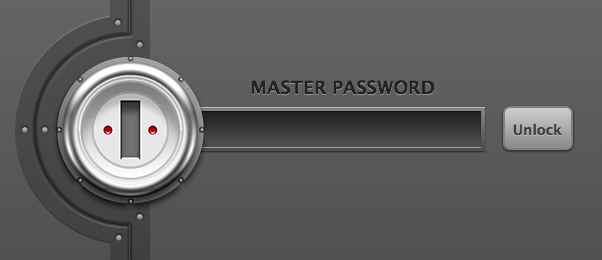
The key behind 1Password is a single master password that you never use anywhere else. This password should never be used on the Internet but rather it is only used locally on your computer or your devices. Pick a secure password that you can remember. Check out this post from AgileBits regarding a good master password.
Desktop
I have used the Mac version of 1Password for a number of years. The desktop version integrates with all major web browsers allowing you to easily switch between browsers and have your passwords available in all of them. I use a combination of Chrome, Safari and Firefox on the Mac. In each of them I get a new button on the toolbar with 1P on it. If I am at a login screen, I can tap on the button. 1Password will ask for my master password the first time I use it during the session. Once the master password is entered, I will see a list of passwords that I have used for the site. I can choose the one I want and the fields will be automatically filled and submitted. You can also change the settings to only fill the fields without submitting.
Phishing Alert
One benefit of having 1Password store your login information is it shows if you are sent to the wrong site. Phishing attacks often try to trick you into thinking you are on a known site rather than their fake site When this occurs, 1Password will not have a login listed since the website will not match the real site. If this happens to you, the lack of login information may be the last stopgap before you give away information you didn’t intend.
Multiple Logins
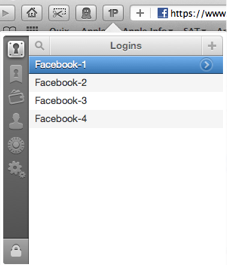
Another nice feature of 1Password is the ability to have multiple logins stored for a website. I use this feature on a number of sites. My company uses Salesforce.com which I administer. I can keep the logins for our different user accounts and switch back and forth easily as I need to. I have both a corporate and personal account with Amazon. 1Password makes it easy to switch back and forth between the two. My family each has a Facebook account. 1Password allows each of us to store the login information to quickly login to our account on our family’s iMac. These are just a few examples where having multiple logins are helpful.
Password Generator
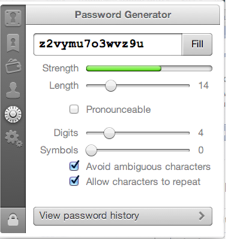
Coming up with new passwords can become a chore. 1Password can help with it’s password generator. You can tell the generator how many characters to use as well as what combination of characters and symbols to use. You can refresh multiple times if you are looking for something you think you can remember. Once you have a password generated, 1Password can fill in the field and then save it for future logins to the site. I use this all the time when I am setting up new sites where I want security as a top priority.
Dropbox Sync
I have talked about Dropbox in other posts but if you haven’t used it before 1Password will give you another good reason to set up a free account. 1Password can use Dropbox to sync your passwords among all of your computers and mobile devices. This is where the convenience of multiple devices allows this type of password strategy to be usable. Without the ability to have these complicated passwords easily available for secure lookup, you wouldn’t be able to remember them when you need them. You can enter passwords on any computer or device and have them passed to the others through the Dropbox sync.
Secure Personal Information
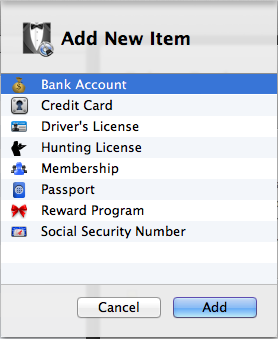
In addition to passwords, 1Password can keep other personal information available when you need it. With the Wallet feature you can keep information on your bank accounts, credit cards, drivers license, social security number among other items securely stored in 1Password. I have used this feature a number of times when I am out and get asked for the information. It beats having to go back home and come back.
Accounts
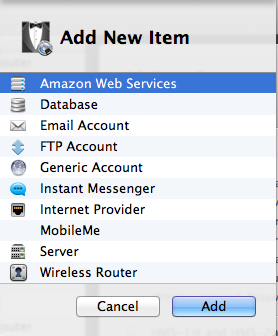
In the Accounts section, 1Password can keep track of a number of different settings for you. This can include settings for your wireless router or accounts for email and FTP. Store your instant messaging or iTunes account information or any other account to help you remember the settings.
Software
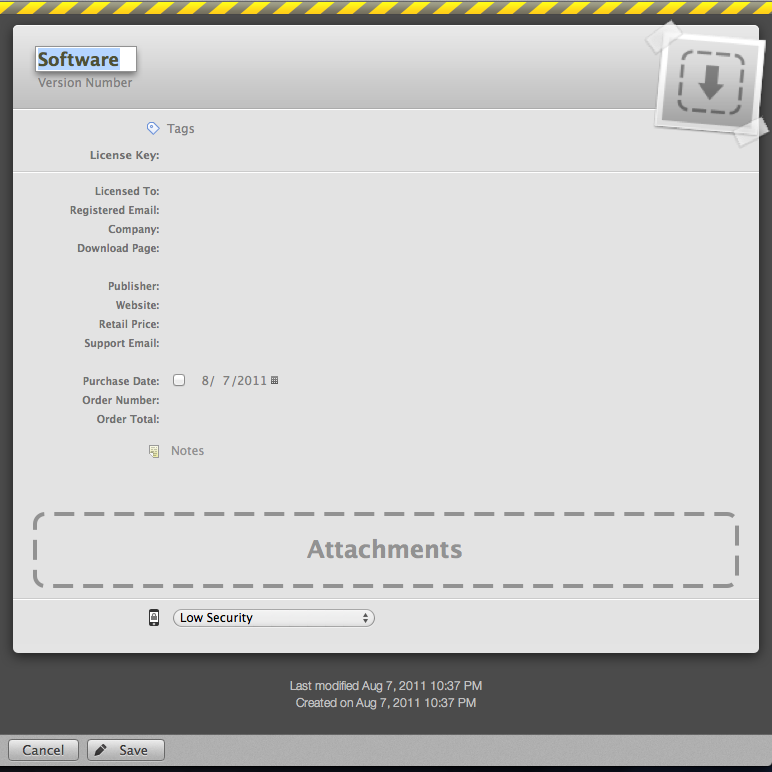
Ever lose track of your software licenses? While the Mac App Store will help going forward for your Mac software, you can use 1Password to track the information for all of your other purchased software for Mac or Windows. When you can’t find that receipt or email, this could be a real money saver.
Identity and Notes
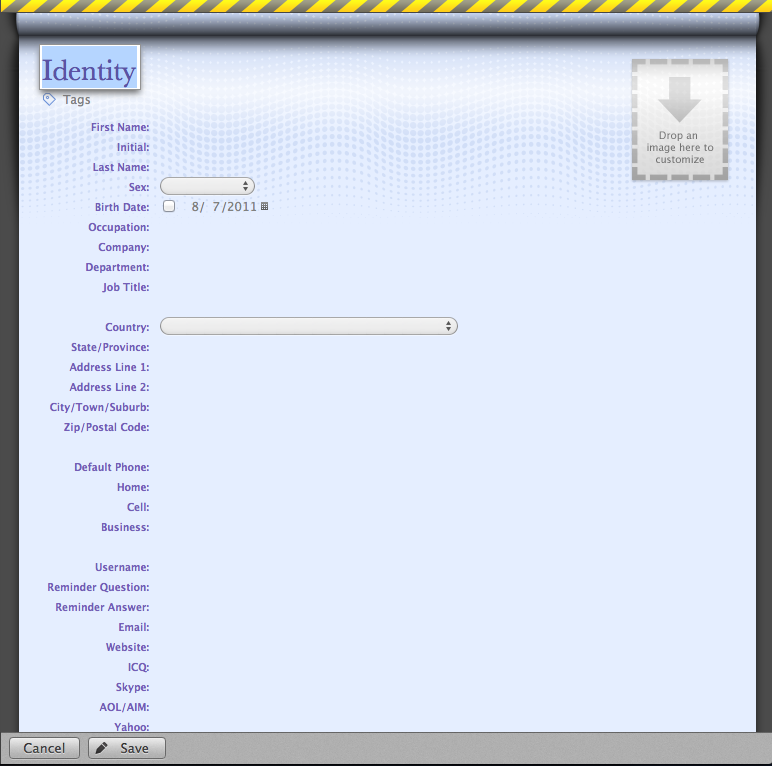
The Identity feature allows you to set up information that is specific to you for home and work. When you need to fill the information into a form it becomes easily accessible from 1Password.
The Notes feature allows you to securely store any note that you would like to remember when you are away from where the information is stored.

Mobile
The mobile versions provide an excellent way to carry your passwords with you securely. They do not provide the same toolbar integration into the mobile browsers like the desktop versions. However, you can easily open 1Password, provide your master password and copy the password for use in your web browser.
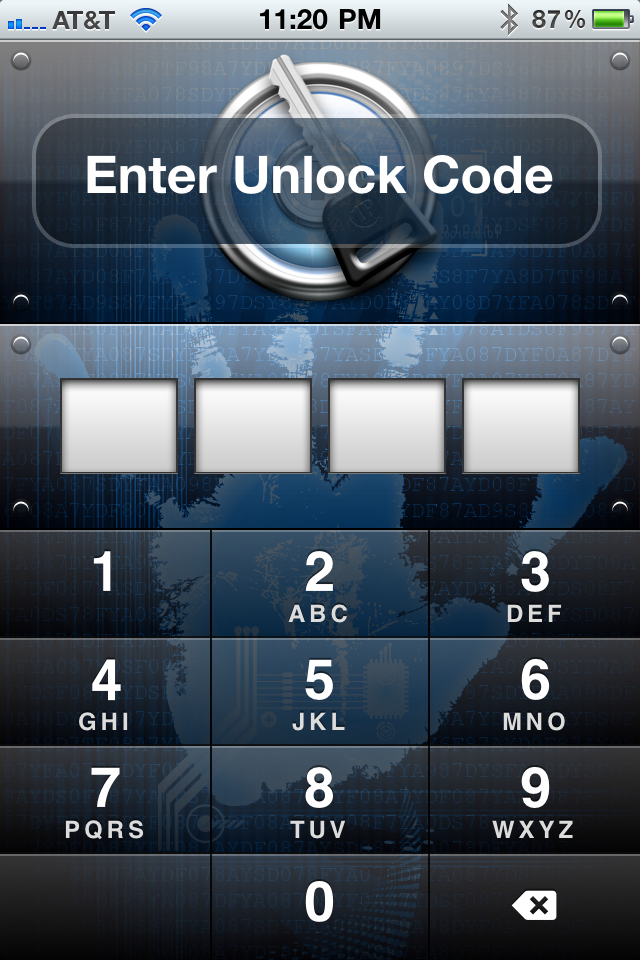
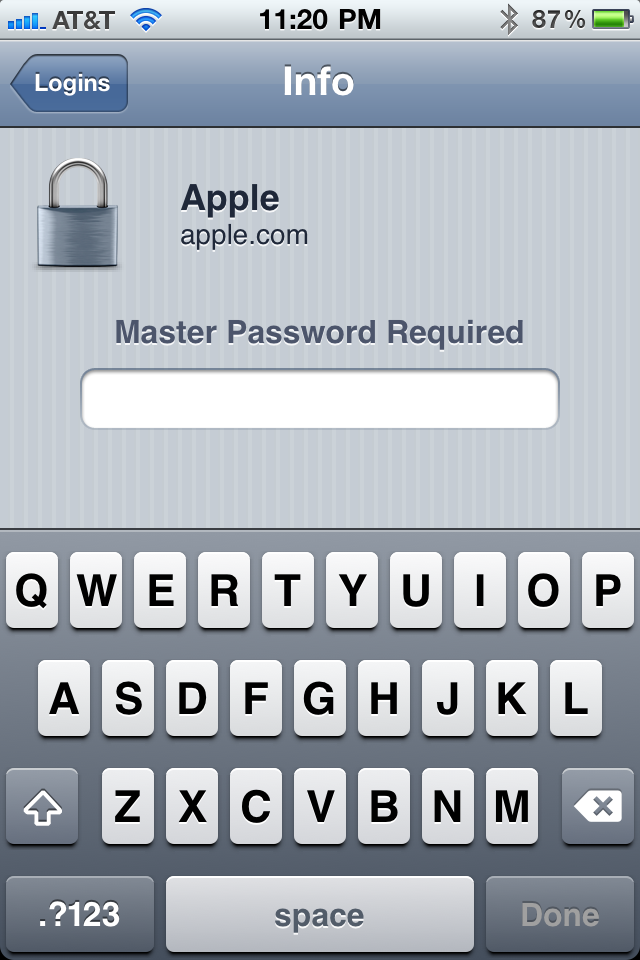
The iPad version looks very similar to the desktop version whereas the smaller screen of the iPhone, iPod Touch and Android phones require a simpler yet still effective layout. As I noted above, having these passwords available on these mobile devices is what makes the complicated multiple passwords work for me.
Conclusion
With the number of security breaches we are seeing lately, you should be convinced that using a simple password over and over across multiple sites was never a good solution but is now a risky solution. The dilemma has been how to keep track of multiple passwords and use them whenever you need them. With 1Password you now have a solution to that dilemma.
In addition to passwords, 1Password allows you to bring along many different types of secure information to be able to answer questions or fill in forms as needed. While this is not free software, when you consider the security of your information you will find this is an excellent solution that will easily pay for itself in time and peace of mind.
 Tom's Tech Tips
I think using 1Password sounds like an excellent way to manage passwords.